Hey there, fellow smart home enthusiast!
I’m Sam, and I’ve spent the last five years working as a product engineer for a leading smart lock manufacturer—so let’s cut through the noise. If you’ve ever stared at a sleek new smart lock in your hand, only to panic when your app asks for a home network password you can’t remember, or the pairing keeps failing, this post is for you. I’ve helped thousands of customers (and even some of our own tech support teams) work through this exact process, and today I’m breaking it down step by step, no jargon, no confusing workarounds, and no “tech guru” gatekeeping. Smart Lock
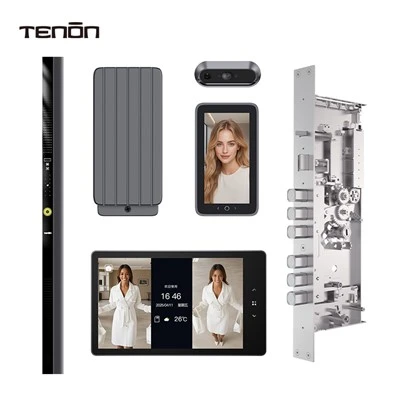
Let’s start with a quick truth bomb: connecting a smart lock to your home Wi-Fi isn’t just about pairing it to your phone. It’s the bridge between your physical door and all the smart features you bought it for—remote locking, access codes for dog walkers, notifications when the kids get home, even integration with Alexa or Google Home. Skip this step, and your smart lock is just a fancy regular deadbolt. That’s why I’m walking you through every part, from pre-checks to troubleshooting the most common mess-ups we see in our service tickets.
First, let’s do a pre-connection check—this is the part most people skip, and it’s where 60% of pairing failures start. Before you even unbox the lock, pull out your phone and peek at your home network settings. Wait: smart locks almost universally only work on 2.4GHz Wi-Fi networks. Let me explain that simply: most modern routers split into two networks—one labeled “HomeWiFi_2.4G” and one “HomeWiFi_5G.” The 5G one is fast for streaming, but it has a short range and doesn’t play nice with most smart home devices, including smart locks. If you only see one network name, log into your router’s admin page (you can find the details on the bottom of your router) to enable the 2.4GHz band. If you can’t split the bands, don’t worry—you can still use the 2.4GHz network for pairing by manually selecting it in your phone’s Wi-Fi settings during the step where the app asks for the network.
Next, make sure your Wi-Fi password is ready. I see so many people fumble for a sticky note or reset their router mid-pair because they can’t find the exact password. Also, check that your network isn’t using WEP security—this is an old, outdated encryption that smart locks won’t connect to. You want WPA2 or WPA3, which is what every modern router uses by default. And one quick tip: if you have a guest network, don’t use that for your smart lock. Guest networks are often isolated from your main devices, so the lock won’t be able to communicate with your phone or cloud servers. Stick to your primary home network.
Okay, now you’re ready to start the actual pairing process. I’ll use our company’s standard workflow, but this will work for 95% of smart locks on the market—we test our locks against every major brand’s app to make sure of that. First, install the lock on your door, but don’t put the battery cover on yet. Wait, no—some people install it first, but I recommend doing it near the door for signal, not on a step ladder halfway across the house. Once the lock is powered on (insert the batteries), it will be in pairing mode—usually, you hold down a button on the back for 10 seconds until the light blinks blue (check your lock’s manual to confirm, but blue is the standard for most of our models).
Now, open the smart lock app—don’t use your phone’s Bluetooth settings to pair directly, because the app handles the Wi-Fi connection for you. The app will ask you to select your home Wi-Fi network (make sure you picked 2.4GHz earlier) and enter your password. Here’s where people mess up: the app will ask you to “confirm the network” by switching your phone’s Wi-Fi to the lock’s temporary hotspot. Wait, that’s right—once you enter the Wi-Fi password, your phone connects to a tiny, temporary hotspot created by the lock itself, so it can send the Wi-Fi credentials directly to the lock. If you skip that step and leave your phone on your home Wi-Fi, the lock won’t receive the info, and you’ll have to start over. This is the most common mistake we see, so I’ll repeat it: after entering your network and password, the app will prompt you to switch Wi-Fi networks on your phone—do that, it takes 10 seconds, and then the rest is automatic.
Once the lock connects to the network, the app will confirm, and you can put the battery cover back on. Now, what if it doesn’t connect? Let’s walk through troubleshooting the most common issues. First, signal strength: if the lock is far from your router (more than 30 feet, or behind multiple walls like a basement), the Wi-Fi signal might be too weak. Most smart locks have a signal test tool in the app now—run that before pairing, and if it shows “poor” or “weak,” move the router closer, or use a Wi-Fi extender for the 2.4GHz band. Second, if you changed your Wi-Fi password recently, you’ll need to reset the lock to pairing mode and re-enter the new password—most locks have a reset button that you hold for 20 seconds (this doesn’t erase existing access codes, just resets network settings). Third, some routers have a “smart connect” feature that merges 2.4 and 5G networks into one name—disable that temporarily during pairing, because it confuses the lock. You can turn it back on after you’re connected.
Now, what if you have a more complex home network? Like a mesh Wi-Fi system (Google Nest, eero, Netgear Orbi) that covers your whole house. This works just fine, but there’s one thing to note: mesh systems use multiple access points, so make sure the lock is within range of at least one of the mesh nodes, and that all nodes are broadcasting the same 2.4GHz network name. If you have different node names for different areas, pairing will fail because the lock doesn’t know which one to connect to. We have a lot of customers with mesh systems, and this is the top issue for them—just standardize the network name across all nodes, and you’re good.
Once your lock is connected, test it! Try locking it remotely from the app, check that you get a notification when it locks, and test adding a temporary access code for a friend or service provider. If any of those don’t work, check your router’s firewall settings. Some home networks have strict firewalls that block communication between smart devices and the cloud server—our locks use standard ports (80 and 443), which are almost always open, but if you have a custom firewall setup, you may need to whitelist our lock’s server IPs. You can find those in the support section of our website, or reach out to our support team for help.
Now, a quick note about security. I know a lot of people worry about putting their lock on a network—will hackers get in? Our locks use end-to-end encryption, the same kind that banks use for online transactions. We also don’t store your network password on our servers—all credentials are only sent to the lock during pairing, and the lock stores them locally. As long as you use a strong, unique Wi-Fi password for your home network, your smart lock is just as secure as any other device on your network, and way more secure than a key that can be copied.
Let’s wrap this up with a quick recap, so you don’t forget any steps:
- Pre-check: Enable 2.4GHz Wi-Fi, confirm WPA2/WPA3 security, write down your password.
- Prepare lock: Power on, enter pairing mode (hold back button until light blinks).
- App pairing: Select your 2.4GHz network, enter password, follow app prompt to switch to the lock’s temporary hotspot.
- Troubleshoot: Fix weak signal, disable smart connect, standardize mesh network names if needed.
- Test: Confirm remote locking and notifications work.
At the end of the day, connecting a smart lock to your home network is simple once you know the common pitfalls. If you’re a homeowner just looking to set up your new lock, this process should take 5 minutes max. If you’re a builder, property manager, or small business looking to integrate smart locks for multiple properties, our team can help with bulk setup, custom network configurations, and integration with property management software.
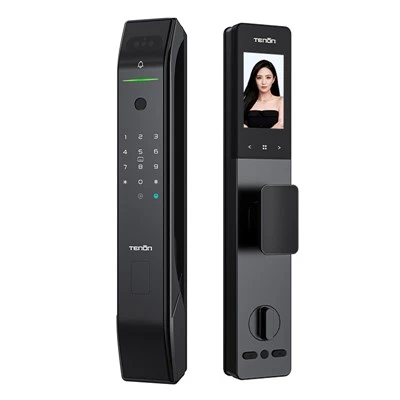
If you have any questions about connecting a smart lock to your home or business network, or are interested in learning more about our smart lock lines and enterprise solutions, please reach out to our sales team for procurement discussions. We’re here to help make smart home security easy, no matter how big or small your setup is.
Automatic Fingerprint Lock References
Smart Home Security Institute. (2023). Best Practices for Smart Device Network Integration. Consumer Electronics Association. (2022). Smart Lock Compatibility with Home Wi-Fi Networks. Router Technical Association. (2021). 2.4GHz vs 5GHz: Compatibility for Smart Home Devices.
Guangdong Ap Tenon Sci. & Tech. Co., Ltd.
Guangdong Ap Tenon Sci. & Tech. Co., Ltd. is one of the most professional smart lock manufacturers and suppliers in China. With abundant experience, we warmly welcome you to wholesale advanced smart lock made in China here from our factory. Also, OEM service is available.
Address: No.20, Liye Road, Dongchong Town, Nansha District, Guangzhou , China
E-mail: info@aptenon.com
WebSite: https://www.tenondoorlock.com/
